LabDesk Cloud FAQ
I. What is LabDesk Cloud
LabDesk Cloud is on-line platform for SMART PRO units in your laboratory
It enables remote preview of current status and measured data of POL-EKO branded units anywhere, anytime and on any equipment you want to (smartphone, tablet, laptop, PC, etc.).
LabDesk Cloud features:
- simultaneous connection of several SMART PRO units
- current measured values preview in the form of a table and chart
- unit status preview with events history and data export option
Go to labdesk.cloud and click “Let’s start” or “Try for free” button to get to Sign up form.
If you are registered user go to labdesk.cloud and click “Log in” button or go directly to monitoring.labdesk.cloud.
II. How to use LabDesk Cloud

To add unit, go to:
- Units management
- Add unit
1. Type Serial number of your unit
(you can find it on the label on your unit or in controller info screen)
2. Type PIN code from controller
3. Press "Add unit" button
You have 5 minutes to type this data!
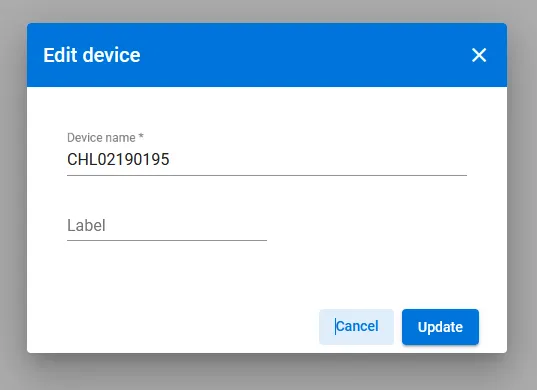
To label unit, go to:
- Units management
1. Press "pencil" icon (edit device) on the right side
2. Type in your own unit label.
3. Press "Update" button.
! Do not change device name!
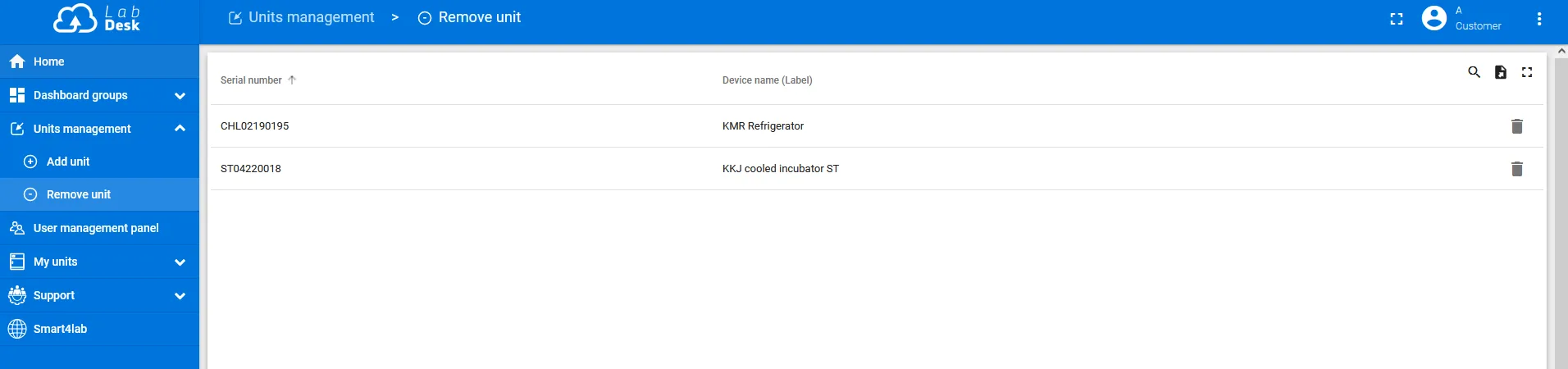
To remove unit, go to:
- Units management
- Remove unit
1. Press "basket" icon (delete device) on the right side
2. Confirm deleting unit.
! When you remove the unit, you lose all registered data!

III. User roles and functionality
The user management structure has been divided into two parts. Privileges are granted from the page panel.labdesk.cloud.
User Privileges GroupsEvery user must have privileges assigned in two groups:
- Administrative Panel
- Monitoring
1. Administrative Panel - having the appropriate privileges in this group allows for the management of other users' privileges. Available user roles:
- All – this group contains all members added to the organization, regardless of the assigned privilege level.
- User – a user with this role on the Administrative Panel page will only see the organization name, and can change the language and login password.
- Admin – a user with this role has access to grant privileges to other users for both the “Administrative Panel” and “Monitoring” sections.
2. Monitoring - Having privileges in this group enables access to device data and the ability to add devices. Available user roles:
- All – This group contains all members added to the organization who have completed the full user registration process.
- Customer User – A user with this role has access to view devices (measurement data, events, charts, and device status).
- Customer Administrators – A user with this role has access to manage devices (adding and removing), as well as the same privileges to view devices as a Customer User.
If no user is selected, you can add a new user to the organization by clicking the plus icon in any group in both the Administrative Panel and Monitoring. To add a user, provide the following details: First Name, Last Name, Email, and Language. The user will appear in both the Administrative Panel and Monitoring groups only after the full account registration process.
If a user is selected, you can add a role to them by clicking the plus (“+”) icon. This operation does not remove the user’s previous role.
If a user is selected in the Administrative Panel, you can remove their role by clicking the minus (“-”) icon. This action will remove the role in the Administrative Panel (Admin and User roles) as well as in Monitoring (Customer User and Customer Administrators roles). Note that a user cannot be removed from the “All” group.
A user can be moved between groups in the Administrative Panel (between Admin and User) as well as in Monitoring (between Customer User and Customer Administrators). To do this, select the user and then choose the "move to group" option. This operation removes the user from the group they were previously in.